Groups
What is a group
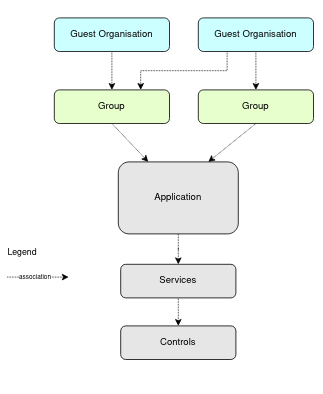
A group is a collection of guest Organisations
The purpose of groups is to define what permissions group members have against a certain application.
Create a group
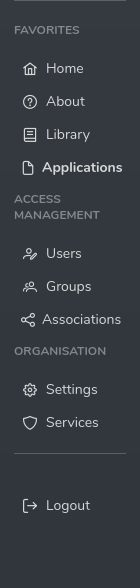
Select “Groups” from the menu bar
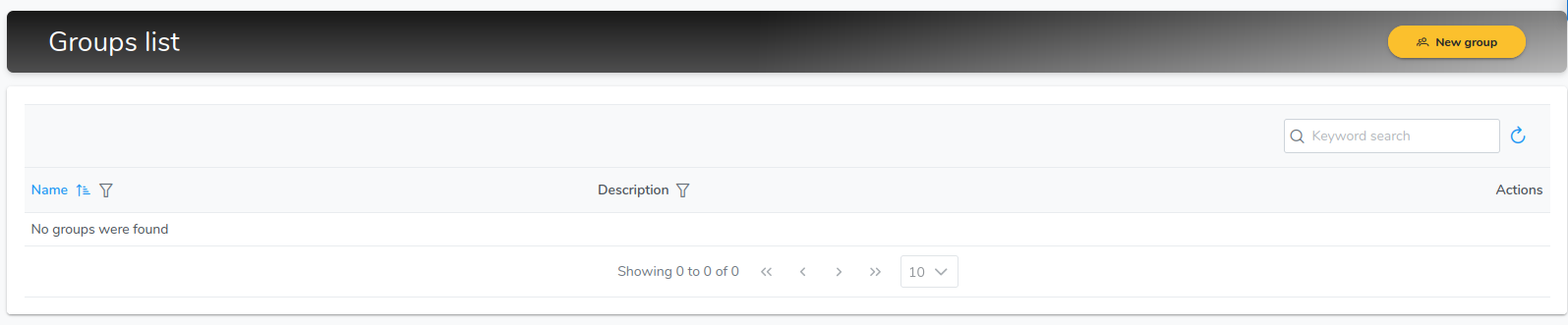
Select “New group” button
Provide details of your group
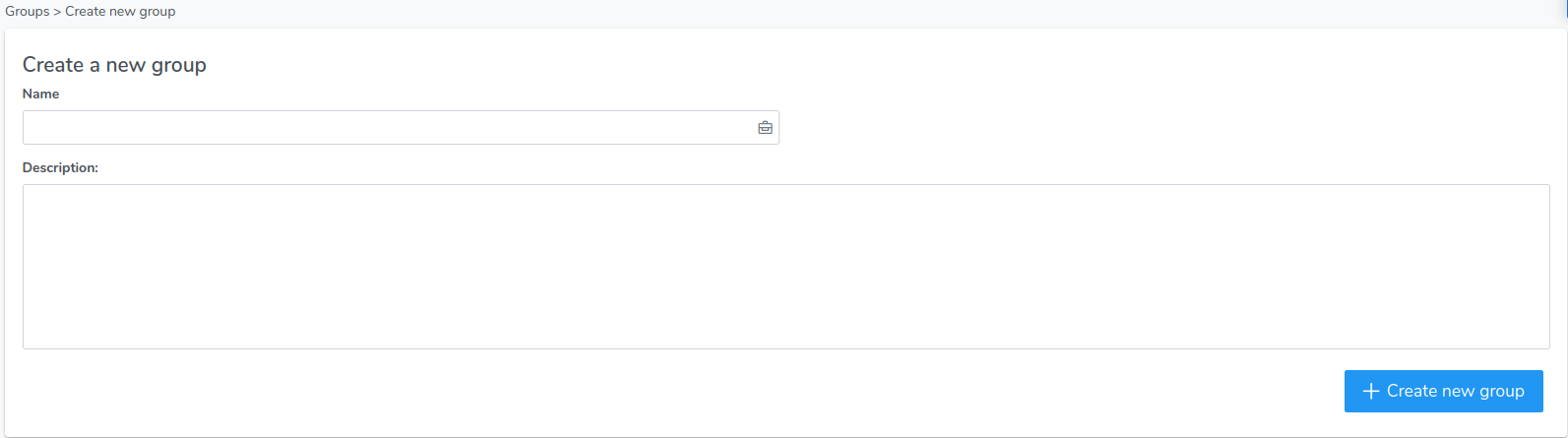
Select the button “Create new group”
Change group details
Select “Groups” from the menu bar
Identify the group you want to change details of and select the plus icon
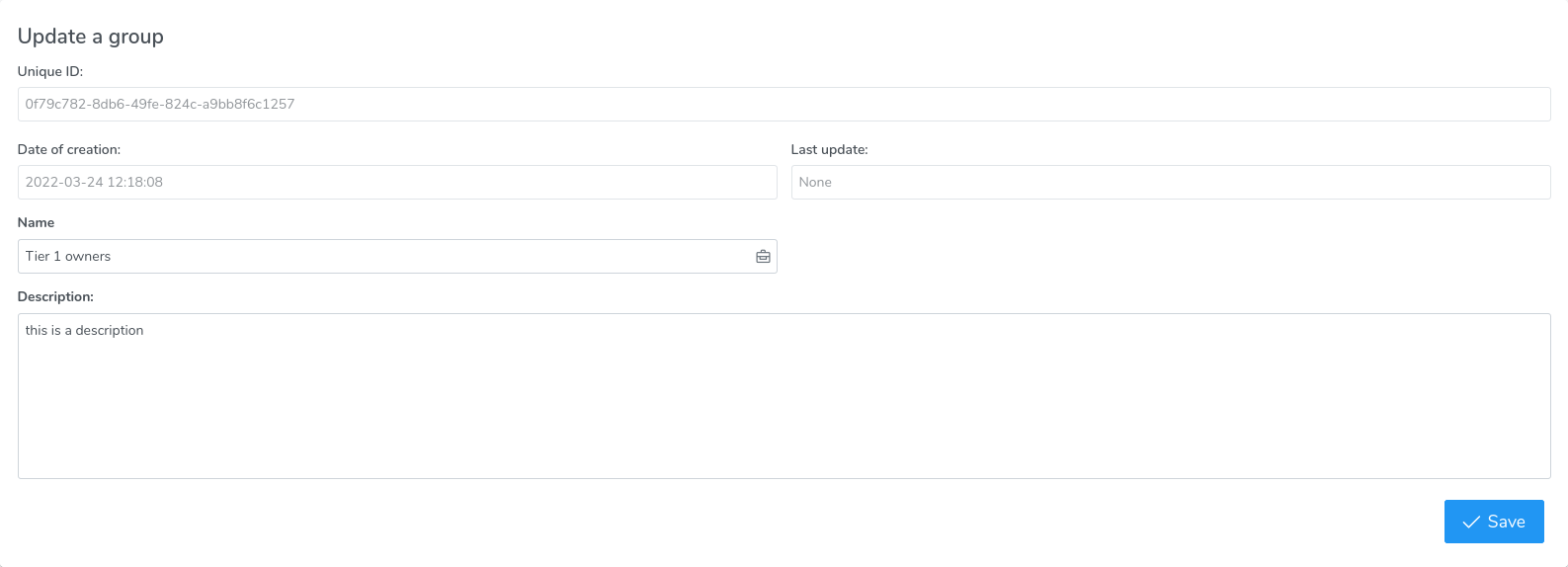
A menu will open to display the actions available for the specific group, select the pencil icon

Once in the edit window, amend all needed details and select “Save”
Delete a group
When a group is deleted, all its relationships are also deleted. This is irreversible
Select “Groups” from the menu bar
Identify the group you want to delete and select the plus icon
A menu will open to display the actions available for the specific group, select the bin icon

A popup notification will appear if the delete operation is successful
Add/remove members to a group
In order to add a member to a group, the member must be associated and active in the host organisation
Select “Groups” from the menu bar
Identify the group you want to add members to and select the plus icon
A menu will open to display the actions available for the specific group, select the members icon

Select the member you wish to add by toggling the button on its right
You can only add one member at the time

To remove a member from a group simply toggle the same button to the default position
Associate a group to an application
Please refer to Applications