Applications
What is an application
An application is the definition of a group of controls and services. Typically an application represents the group of services used to provide a functionality.
The granularity of which an application can be defined is up to the user, however we do not recommend defining applications as too granular or too coarse.
For example if the system in scope is composed of:
- A frontend load balancer
- A virtual machine
- A database
You can define the group of the above services as one application. While possible, it is not recommended to create an application for each individual component of the system.
On the other side, it is not recommended to create an application with multiple components from multiple systems.
Create a new application
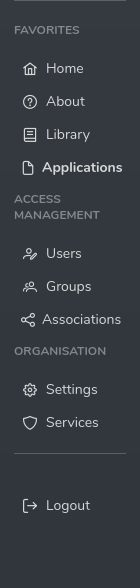
Select “Applications” from the menu bar
Select “New application” button

Provide details of your application
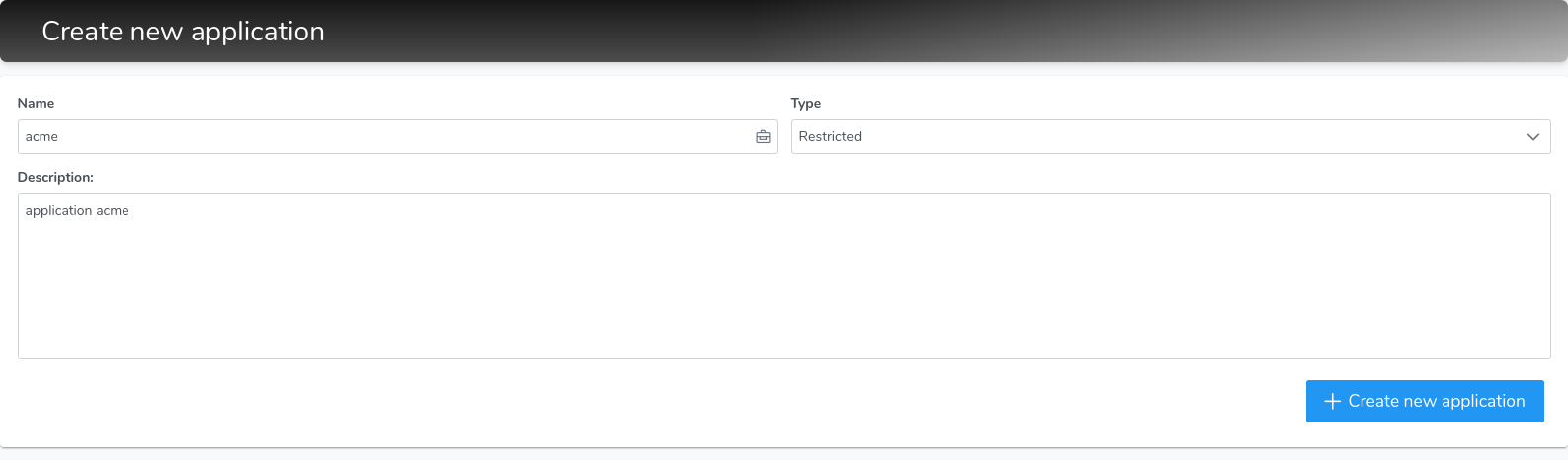
Select its type Restricted or Friendly
Select the button “Create new application”
Friendly and Restricted types
When creating or updating an application, you can choose to classify the application as Restricted or Friendly.
A friendly application allows members with access, to override the default applicability of controls dictated by the organisational settings.
A restricted application doesn not allow override of services or controlsand what is configured on the global organisational settings will be applied.
Change application details
Select “Applications” from the menu bar
Identify the application you want to change and select the plus icon
A menu will open to display the actions available for the specific application, select the pencil icon

Once in the edit window, amend all needed details and select “Save”
Delete an application
When an application is deleted, all its relationships are also deleted. This is irreversible
Select “Applications” from the menu bar
Identify the application you want to delete and select the plus icon
A menu will open to display the actions available for the specific application, select the bin icon

A popup notification will appear if the delete operation is successful
Associate a group to an application
Select “Applications” from the menu bar
Identify the application you want to delete and select the plus icon
A menu will open to display the actions available for the specific group, select the members icon

Identify the application you want to delete and select the plus icon
Select the group you want to associate by first selecting the role from the dropdown menu, then pressing the save icon on the right
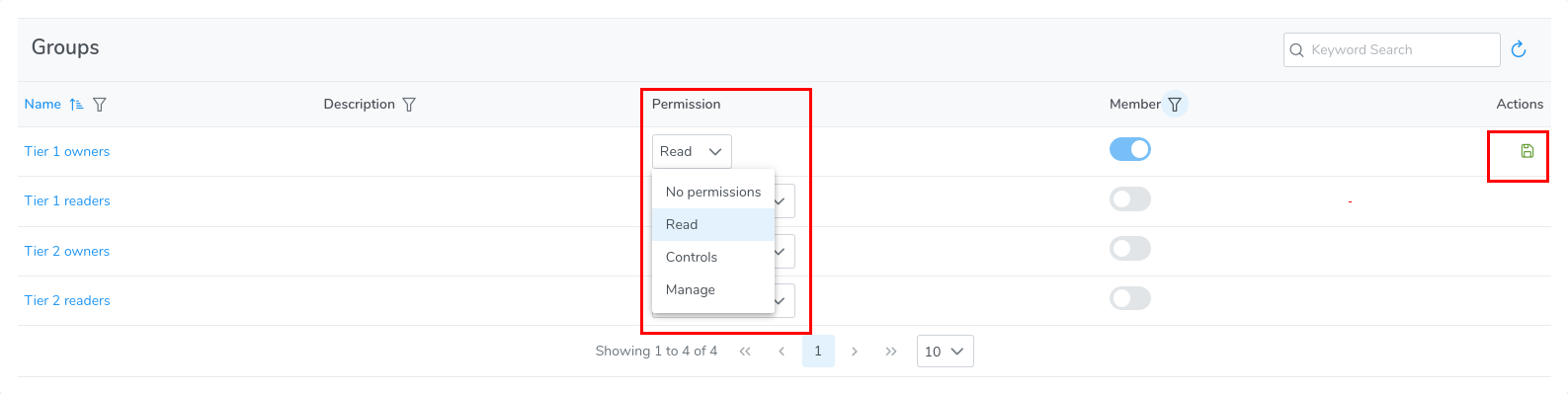
See Roles for an explanation of each role permissions